There’s nothing worse than driving into an area with spotty service. Your Google Maps freezes and shows the spinning “Rerouting…” circle. Suddenly, you’re on your own, guessing at the next turn.
That’s where offline maps come in. This feature is a lifesaver for road trips, hiking, or even just navigating a big city with unreliable signal. It allows you to save a large map area directly to your iPhone’s storage.
In this guide, we’ll show you how to download offline maps in the Google Maps app on your iPhone. We’ll also explain how to use and manage these maps.
How To Download Google Maps Offline on iPhone
You must be connected to the internet to download a map. Using Wi-Fi is best. Don’t wait until you’ve already lost signal!
Step 1: Open Google Maps & Search
Open the Google Maps app. In the search bar at the top, type the name of the city, state, or region you want to download (e.g., “New York City,” “Lake Tahoe,” or “Downtown London”).

Step 2: Open the Location Card
After you search, a “card” with the location’s name will appear at the bottom of the screen. Tap the name or swipe up on this card to open the full information page.
Step 3: Find the Download Option
In the top-right corner of the screen, tap the three-dot menu (…). A pop-up menu will appear.

Select “Download offline map” from the list.

Step 4: Select Your Area and Download
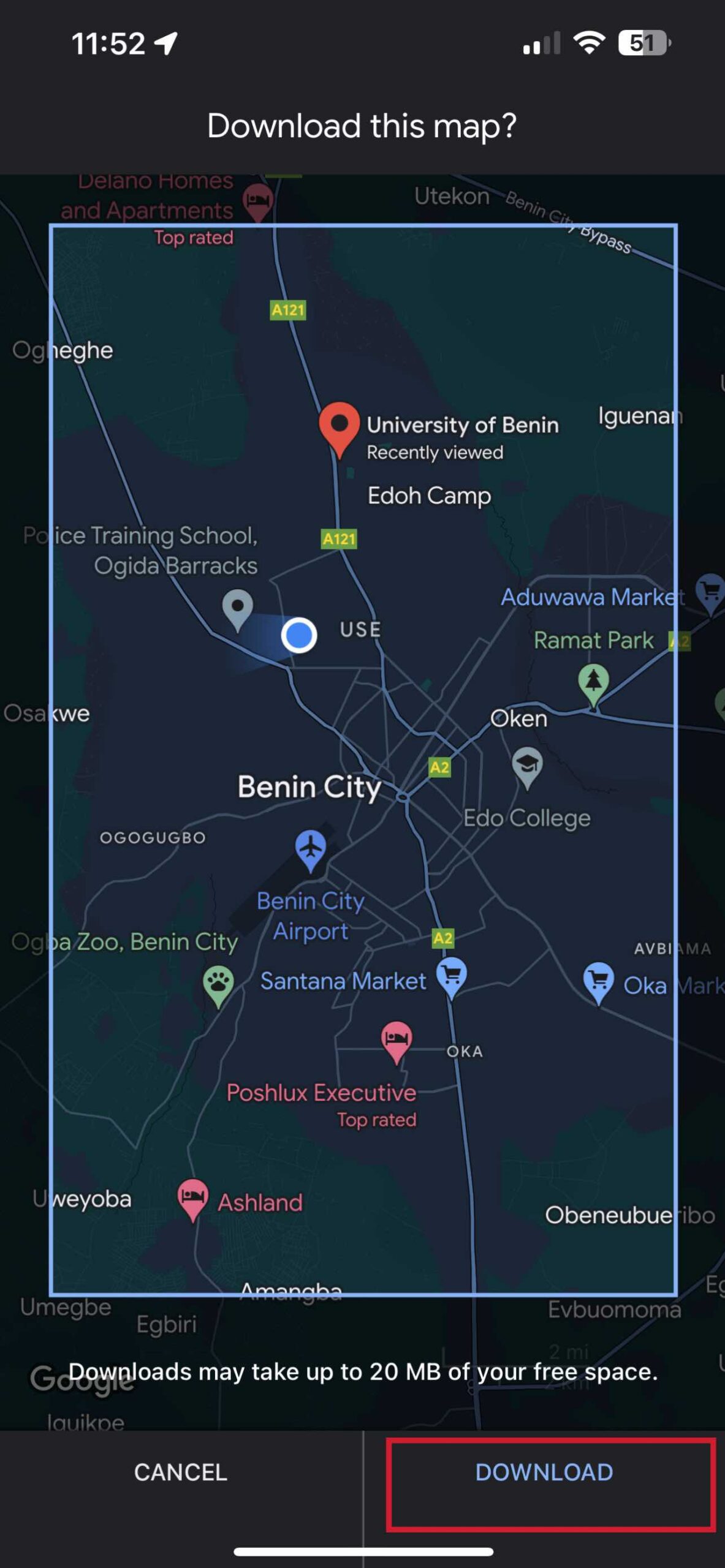
Google Maps will now show you a map with a blue box. You can pinch and zoom to adjust exactly what area this box covers. The bigger the area, the more storage space it will take.
Pay attention to the text at the bottom (e.g., “Download size: 85 MB”). This tells you how much space it will use. Once you are happy with the area, tap the “Download” button.
How To Use Google Maps Offline On iPhone
This is the best part: you don’t have to do anything.
You need to download the map. Then, the Google Maps app is smart enough to know when you’ve lost your internet connection. It will automatically switch to the offline map you saved.
You can still search for streets, businesses, and locations within your downloaded map area. You can also still get driving directions.
Important: What Doesn’t Work Offline?
This is the most important thing to know. An offline map is a lifesaver, but it has limitations. When you’re offline, you CANNOT get:
- Live Traffic Data: The map can’t tell you about traffic jams, accidents, or provide faster re-routing based on live conditions.
- Walking, Biking, or Transit Directions: This is a big one. Offline maps can only provide driving directions.
- Live Business Information: You can search for a restaurant. However, you won’t see its live “Busy” status. Recent photos or new reviews will not be visible.
How To Manage Your Offline Maps (Update or Delete)
Offline maps can take up a lot of space. They also expire (usually after a year). This allows Google to provide fresh road data. Here’s how you manage them.
Step 1: Open the Offline Maps Menu
Open the Google Maps app. Tap on your Profile icon in the top-right corner (in the search bar).
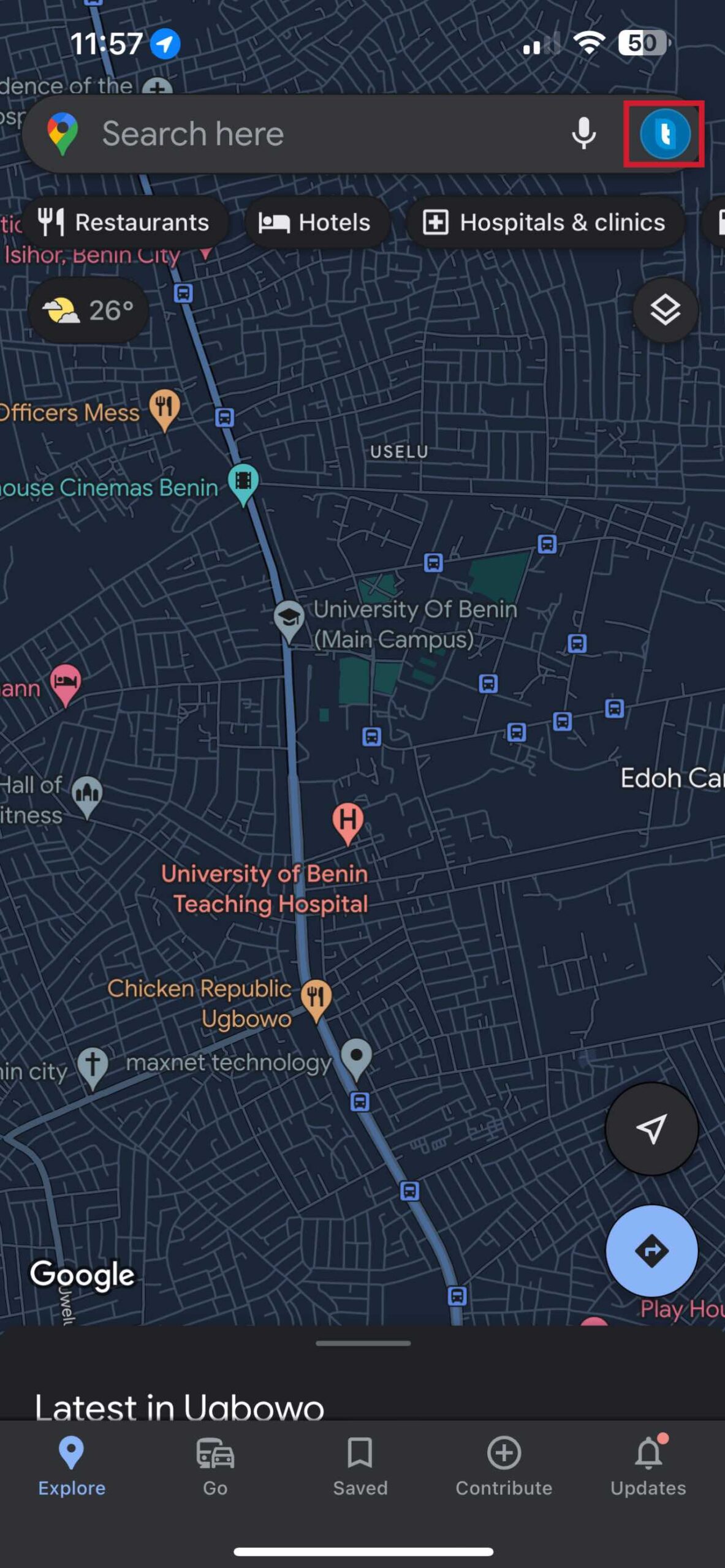
From the menu that appears, select “Offline maps.”
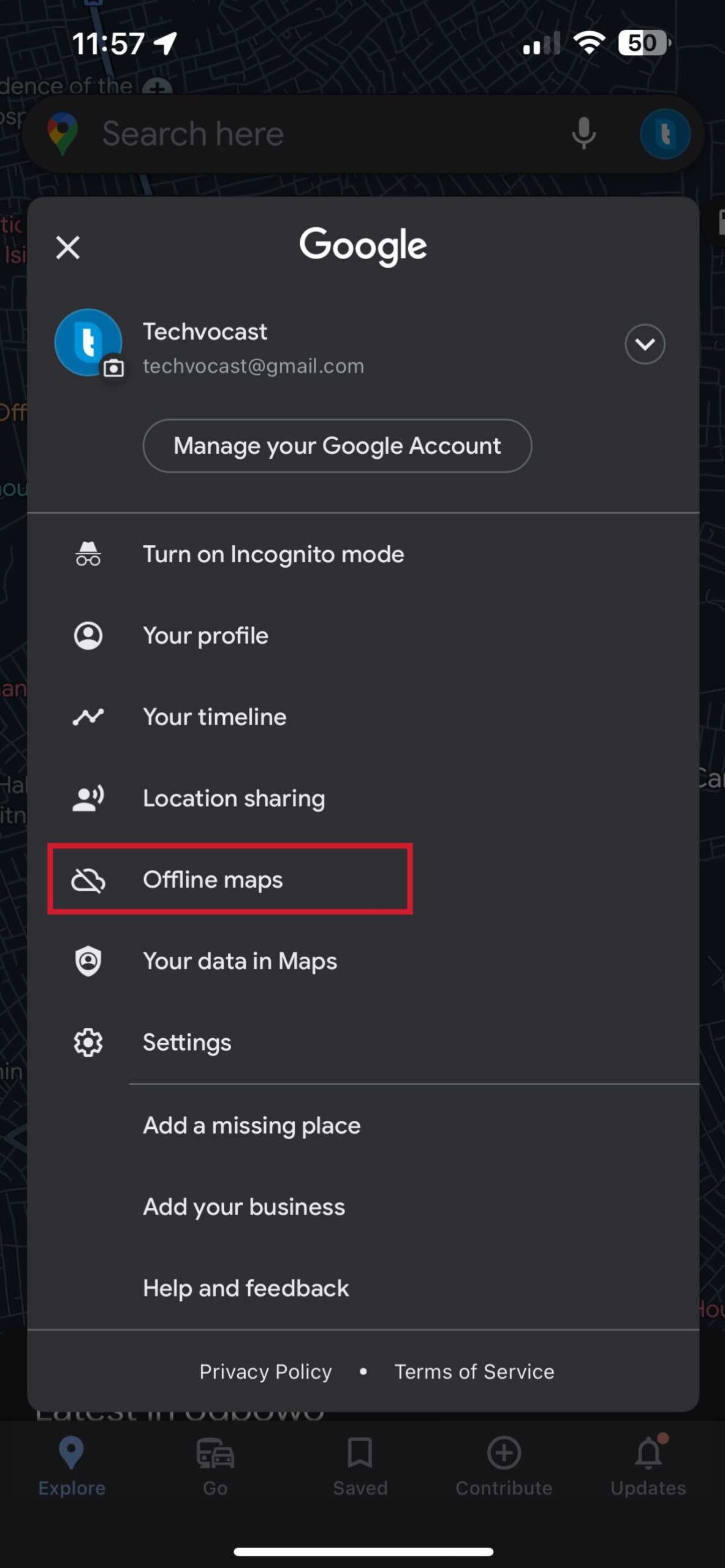
Step 2: Manage Your Maps
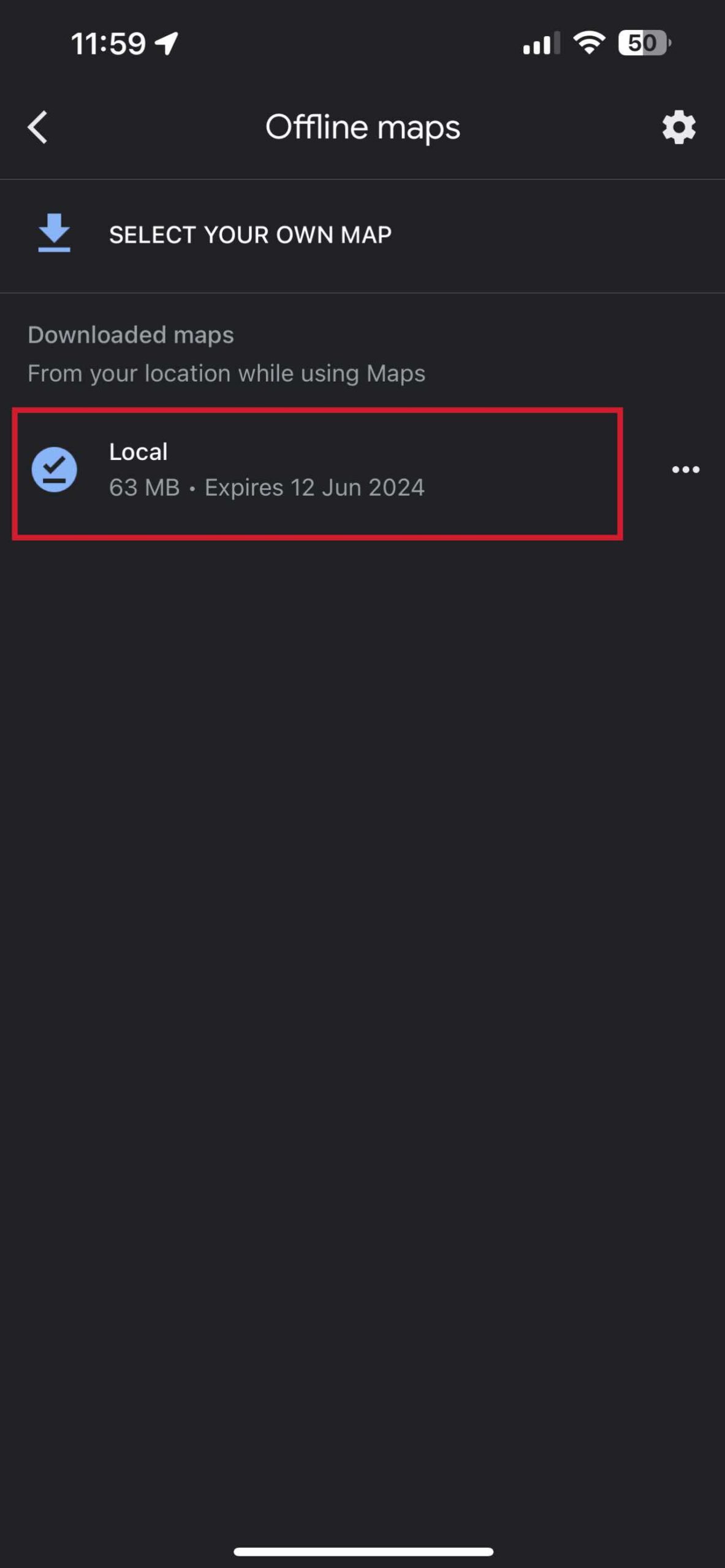
You will now see a list of all the maps you have downloaded. By default, “Auto-update” is turned on, which is great—it means Google will keep your maps fresh for you over Wi-Fi.
To delete a map, tap the three-dot menu (…) next to the map you want to remove.
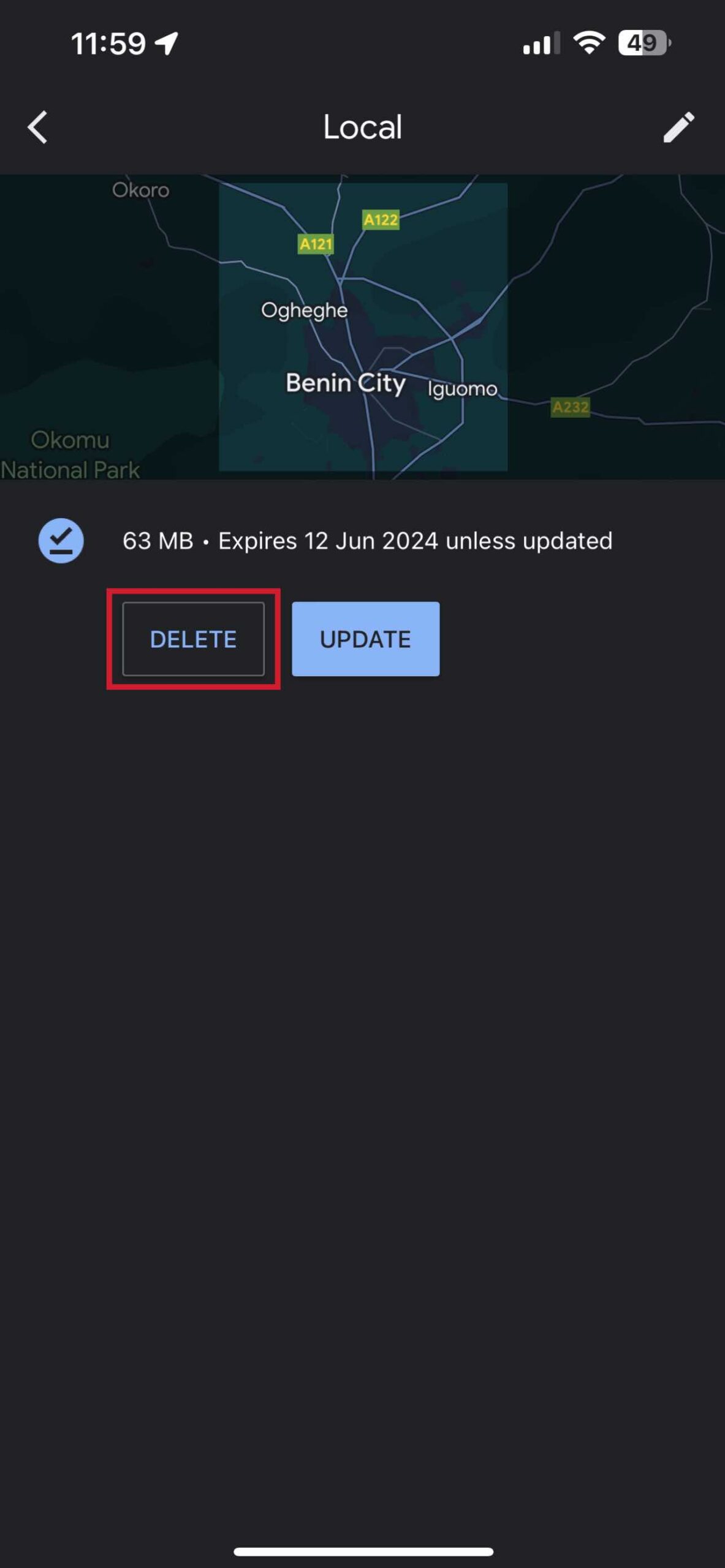
From the menu, tap “Delete” and then confirm your choice. This will immediately free up the storage space on your iPhone.

Conclusion
Downloading Google Maps for offline use is a must-have for any traveler. It’s the perfect backup plan to ensure you’re never truly lost, even when your internet connection fails.
Just remember to download your map over Wi-Fi before you leave, be aware of the limitations (driving directions only!), and delete old maps when you no longer need them to keep your iPhone’s storage free.
Further Reading
- How To Share iCloud Photos With Other People Using Shared Album
- Apps Not Updating On Your iPhone Or iPad? What To Do To Fix It
- How To Change Your Apple ID Email Address On An iPhone or iPad
- How To Upload Videos On YouTube From Your iPhone or iPad
- How To Turn Off Geotagging For Photos On iPhone or iPad