We all get comfortable with that one password we’ve used for years. But in a world of constant data breaches, is it still secure? Forcing your password to change regularly on your Windows PC can feel like a solid security habit.
This feature is often used by corporations. It prompts you to create a new password every 72 days (or any number you set). But before we show you how to do it, let’s talk about if you still should.
The Modern View: Should You Still Use Password Expiration?
Here’s the honest truth: modern security advice, including from Microsoft, has moved away from mandatory password expiration for most people. Why?
- It often leads to weaker passwords. When forced to change, people tend to make small, predictable changes (e.g., “P@ssword2024!” becomes “P@ssword2025!”).
- A long, strong, and unique password that you never change is safer than a simple one you’re forced to update.
What’s better? We strongly recommend using a long, unique password (a passphrase) combined with Multi-Factor Authentication (MFA) or Windows Hello (face/fingerprint login). This is far more secure than just rotating a simple password.
This guide is for those who are required to do this. This might be necessary for work compliance. It is also for those who know they have bad password habits and want a forced reminder. For everyone else, we recommend focusing on password strength and MFA instead.
Read Also: The Best Password Managers (To Create & Store Strong Passwords)
Method 1: For Microsoft Accounts (The Easy Way)
If you log in to Windows 10 or 11 with your Microsoft Account (your @outlook.com, @hotmail.com, etc., email), this is the simplest method. It works on all editions of Windows.
- Go to the official Microsoft account security page and sign in.
- Click on “Password” or “Change my password” at the top. You may need to verify your identity.

- Enter your current password and then your new, strong password.
- Look for the checkbox that says “Make me change my password every 72 days.”
- Check that box and click “Save.”

That’s it! Microsoft will now prompt you to create a new password every 72 days.
Method 2: For Local Accounts (Windows Pro & Enterprise)
If you use a “local account” (one not tied to a Microsoft email), you can use this method.
Important: This method uses the “Local Users and Groups” manager (lusrmgr.msc), which is NOT available in Windows 10 or 11 Home editions. If you have Windows Home, you must use Method 3.
- Press the Windows Key + R to open the “Run” box.
- Type
netplwizand click “OK.”

- In the “User Accounts” window, go to the “Advanced” tab.
- In the “Advanced user management” section, click the “Advanced” button.
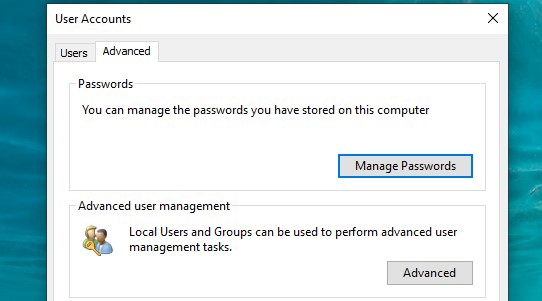
- A new window will open. Click “Users” in the left-hand panel.
- Find your account in the list, right-click it, and select “Properties.”

- In the “Properties” window, uncheck the box that says “Password never expires.”
- Click “Apply,” then “OK.”

By default, Windows sets the password expiration to 42 days. If you want to change that number, you’ll need to use Method 3.
ALSO READ: How To Turn Off Login Password In Windows 10 (Local & Microsoft)
Method 3: For Local Accounts (All Windows Versions, Pro & Home)
This is the most powerful method. It works for all versions of Windows 10 and 11, including Home. It uses the Command Prompt or PowerShell.
Step 1: Open PowerShell as an Administrator
Click the Start button, type “PowerShell,” right-click “Windows PowerShell” in the results, and select “Run as administrator.”
Step 2: Check Your Current Password Age
To see what your current policy is, type the following command and press Enter:
net accountsLook for the “Maximum password age (days)” line. If it says “Never,” your password doesn’t expire. By default, it might be 42.

Step 3: Set a New Password Expiration Date
To change the expiration date to 72 days, type the following command and press Enter:
net accounts /maxpwage:72You can change “72” to any number of days you want.
Expert Tip: If you ever want to turn off expiration, use this command: net accounts /maxpwage:unlimited
Once you see “The command completed successfully,” you’re all set. Your local account password will now expire, and Windows will prompt you to change it when the time comes.