Are you confused by Instagram symbols and icons while scrolling through your feed? Instagram icons can be puzzling, especially with frequent app updates introducing new symbols. From the green circle around profile pictures to the mysterious airplane icon, understanding Instagram symbols is essential for navigating the platform effectively.
This complete guide explains what every Instagram icon means, where to find each symbol, and exactly what happens when you tap them. Whether you’re wondering about Instagram story icons, post symbols, or DM indicators, we’ll tell you all the Instagram icons symbols and their meaning.
Instagram Icons Explained: Navigation Bar Symbols
Main Navigation Bar Icons (Bottom of Screen)
The main Instagram navigation icons are located at the bottom of your screen and provide instant access to core features:
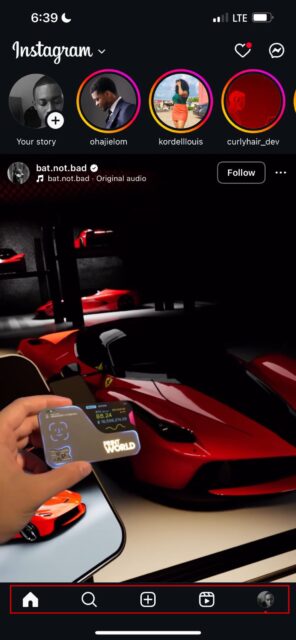
Home Icon – Instagram Feed Symbol
What it means: The house symbol opens your main Instagram feed
Where to find it: Bottom left corner of the navigation bar
Function: Shows posts from accounts you follow plus recommended content
Pro tip: Double-tap the home icon to instantly scroll to the top of your feed
GEO insight: This Instagram icon is universally recognized across all Instagram versions globally
Search Icon – Instagram Explore Symbol
What it means: The magnifying glass icon opens Instagram’s Explore page
Function: Provides access to trending content and Instagram search features
Search capabilities: Find profiles, hashtags, locations, Instagram posts, and Reels
Algorithm: Instagram customizes explore content based on your engagement patterns
GEO optimization: This Instagram symbol functions identically across all global Instagram versions
Create Content Icon (Plus Symbol)
Location: Center of navigation bar
Function: Opens the content creation menu
Options available: New post, Story, Reel, Live broadcast, or Close Friends story
Pro tip: Long-press for quick access to specific creation tools
Design note: Often stands out with a different background color
Reels Icon (Play Button/Clapperboard)
Location: Fourth icon from left
Function: Takes you directly to the Reels feed for short-form videos
Navigation: Swipe up to see more Reels, swipe down to return to previous content
Algorithm: Shows Reels based on your viewing history and engagement patterns
New feature: Now includes content from friends and accounts you follow
Profile Icon (Your Profile Picture)
Location: Far right of navigation bar
Function: Opens your personal profile page
Account switching: Long-press to quickly switch between multiple accounts
Notification indicator: Red dot appears when other accounts you manage have notifications
Privacy: Shows your current profile picture, which updates automatically when you change it
Top Bar Icons on Home Feed
The top section of your Instagram home feed contains several important icons for your feed and communication:
Instagram Logo/Feed Selector Arrow
Location: Top left, next to Instagram wordmark
Function: Switch between “Following” feed and “Favorites” feed
Following feed: Shows only posts from accounts you follow in chronological order
Favorites feed: Includes content from your favorites accounts
Activity/Notifications Heart Icon
Location: Top right area
Function: Opens your activity and notifications panel
Red dot indicator: Appears when you have unread notifications
Notification types: Likes, comments, new followers, mentions, story reactions, and tagged posts
Organization: Recent activity appears at the top, older notifications below
Privacy: Only you can see your notifications
Direct Messages Icon (Paper Airplane in Chat Bubble)
Location: Top right corner
Function: Opens your Direct Messages inbox
Unread indicator: Red circle with number shows unread message count
Message types: Text, photos, videos, voice notes, posts, and Stories shared privately
Group chats: Supports conversations with multiple people
Recent addition: Now includes AI chat options
Instagram Post Icons and Symbols Explained
Understanding Instagram post symbols helps you interact with content effectively. These Instagram icons appear above, on, and below every post:
Instagram Verification Icon – Checkmark Symbol
What it means: The blue checkmark indicates Instagram has verified this account’s authenticity
Who gets it: Celebrities, public figures, brands, and notable Instagram creators
Important: Instagram verification badges cannot be purchased or transferred.
GEO note: Instagram verification symbols appear consistently across all regions
Three Dots Menu (More Options)
Location: Top right corner of every post
Function: Opens additional post options menu
Available actions: Save post, copy link, report content, hide from feed, remix (if available), share to story, about this account
Account actions: Unfollow, mute posts, restrict, or block the account
Content actions: Turn on post notifications, see fewer posts like this
Music Icon/Trending Audio Indicator
Appearance: Musical note symbol or upward arrow
Function: Takes you to the audio page for the song/sound used
Information shown: Track details, artist name, other posts using the same audio
Save option: Available for most tracks to use in your own content
Trending indicator: Arrow symbol appears when audio is currently trending
Creation tool: Tap “Use Audio” to create content with the same sound
Post Interaction Icons – On the Post Content
These icons appear overlaid on or integrated into the post content itself:
People Tag Icon (Person Symbol)
Appearance: Small person-shaped icon, usually in bottom-left corner
Function: Shows tagged people in the post
Tap action: Reveals list of tagged accounts with links to their profiles
Privacy: Account owners can remove tags or require approval for tags
Multiple tags: Number may appear next to icon showing tag count
Audio/Speaker Icon
Appearance: Speaker symbol with or without slash
Function: Indicates video audio status and allows muting/unmuting
Speaker without slash: Audio is currently playing
Speaker with slash: Audio is muted
Tap action: Toggles sound on/off instantly
Auto-mute: Videos often start muted based on your settings
Carousel Indicator Numbers
Appearance: “1/5”, “2/8” etc. in top-right corner
Function: Shows current slide position in multi-image/video posts
Navigation: Swipe left/right to see all content
Total count: Second number indicates total images/videos in the post
Progress dots: May also appear as small dots at the bottom of the post
Post Interaction Icons – Below the Post
The icon row below every post provides your main interaction options:
Instagram Heart Icon – Like Symbol
What it means: The heart symbol lets you like Instagram posts
Function: Tap to like posts, double-tap posts for the same effect
Visual feedback: Instagram heart icon turns red when you like content
Privacy: Your Instagram likes may be visible to others depending on account settings
Usage: Essential Instagram symbol for content engagement
Instagram Comment Icon – Speech Bubble Symbol
What it means: The speech bubble opens Instagram comments sections
Function: Read and write comments on Instagram posts
Counter display: Shows total number of comments on each post
Interaction: Essential Instagram icon for community engagement
Moderation: Post owners can manage comments using Instagram’s tools
Share Icon (Paper Airplane)
Location: Third from left
Function: Opens sharing options menu
Share methods: Direct message, add to story, copy link, share to other apps
External sharing: WhatsApp, Snapchat, Twitter, and other installed apps
Story sharing: Adds the post to your Story with credit to original poster
Link sharing: Copy direct link to share anywhere
Repost Icon (Two Arrows in Square)
Location: May appear fourth from left
Function: Reposts the content to your profile
Recommendation: Instagram promotes reposts to your connections
Attribution: Original creator gets credit for the repost
Availability: Only works with public posts
Note: This is a newer feature and may not appear on all posts
Bookmark Icon (Ribbon/Flag)
Location: Far right below post
Function: Saves post to your private collections
Privacy: Only you can see what you’ve saved
Organization: Create custom collections to organize saved content
Access: View saved posts from your profile menu
Content types: Works with posts, Reels, and IGTV videos
Instagram Story Icons and Symbols Guide
Instagram Stories use specific icons and symbols that indicate different statuses and functions:
Instagram Story Ring Colors – Profile Picture Symbols
Colorful ring (pink/orange): New Instagram story you haven’t viewed yet
Gray ring: Instagram story available, but you’ve already seen all content
Green ring: Close Friends Instagram story (you’re on their close friends list)
No ring: No current Instagram story available from this user
Your story indicator: Shows “Your Story” text with plus icon for adding content
Instagram Story Viewing Icons
Heart symbol: Like the Instagram story without sending a direct message
Paper airplane icon: Share Instagram stories via DM or add to your own story
X icon: Close the Instagram story and return to your feed
Three dots menu: Additional Instagram story options (mute, report, copy link)
Repost indicator: Two arrows show this Instagram story was shared from another account
Story Creation Icons
The story camera interface includes numerous creative tools:
Flash icon: Toggle flash on/off/auto
Flip camera icon: Switch between front/rear camera
Gallery icon: Select content from your camera roll
Timer icon: Set a countdown before photo/video capture
Speed icons (0.5x, 1x, 2x): Adjust recording speed for videos
Effects icons: AR filters and visual effects
Music icon: Add background music or trending audio
Text icon (Aa): Add text overlays with various fonts
Sticker icon: Add interactive stickers, polls, questions, etc.
Drawing icon: Draw or write on your story
Settings gear: Privacy and saving options
Instagram Reels Icons and Symbols Explained
Instagram Reels feature unique symbols for viewing and creating short-form video content:
Instagram Reels Viewing Symbols
Heart icon: Like Instagram Reels (turns red when you engage)
Comment bubble: Open Instagram Reels comments section
Share arrow: Share Instagram Reels via DM, copy link, or add to story
Music note symbol: Visit the audio page to explore Instagram Reels sounds
Three dots menu: Additional Instagram Reels options (save, remix, report)
Profile pictures with hearts: Shows friends who also liked this Instagram Reel
Instagram Reels Creation Icons
Record button: Start and stop recording Instagram Reels clips
Timer symbol: Set Instagram Reels recording duration
Speed controls: Adjust Instagram Reels playback speed (0.5x, 1x, 2x)
Effects icon: Apply visual filters to Instagram Reels
Music symbol: Browse Instagram’s audio library for Reels soundtracks
Text tool: Add captions and text overlays to Instagram Reels
Reels-Specific Indicators
Play count eye icon: Shows total number of views
Trending arrow: Indicates trending audio
Remix icon: Shows this Reel remixes another creator’s content
Original audio: Shows when creator used their own recorded audio
Instagram Direct Message Icons and Symbols
Instagram DM symbols help you understand message status and conversation tools:
Instagram Chat List Symbols
Green dot: User is currently active on Instagram (online status)
Blue dot: Unread Instagram messages in this conversation
Camera icon: Quickly send disappearing Instagram photos or videos
Pin symbol: Keep important Instagram conversations at the top of your list
Bell with slash: Muted Instagram conversation (no notification sounds)
Archive icon: Hide Instagram conversations from your main inbox
Instagram Message Conversation Icons
Video camera symbol: Start Instagram video calls with contacts
Phone icon: Begin Instagram audio calls
Microphone symbol: Record and send Instagram voice messages
Gallery icon: Send photos and videos from your device to Instagram DMs
Plus circle: Access additional Instagram DM tools (location sharing, AI features)
Heart reactions: React to specific Instagram messages with emoji symbols
Message Status Icons
Single checkmark: Message sent
Double checkmark: Message delivered
“Seen”: Message read by recipient
Blue circle: Voice message, shows duration
Red circle: Temporary photo/video that disappears after viewing
Profile Page Icons
Profile pages contain icons for account management and content organization:
Your Profile Icons
Story creation (+): Add content to your story
Account switcher arrow: Switch between multiple accounts
Threads symbol (@): Open profile in Threads app
Create content (+): Make new post, story, or reel
Menu (three lines): Access settings, saved posts, and account tools
Suggest people (+): Find new accounts to follow
Other Profiles Icons
Follow/Following button: Follow or manage following status
Message button: Send direct message
Bell icon: Turn on post notifications
Three dots menu: Additional profile options (block, restrict, report, etc.)
Threads symbol (@): View their Threads profile
Content Grid Icons
Grid icon: View all posts in grid layout
Reels icon: See all published Reels
Tagged icon: Posts where you’re tagged (your profile only)
Pin icon: Pinned posts that stay at top of profile
Multiple image icon: Indicates post has multiple photos/videos
Live Video Icons
When watching or broadcasting live videos, specific icons control the experience:
Viewing Live Videos
Viewer count: Shows current number of live viewers
Heart icon: Send floating hearts to show appreciation
Comment box: Write live comments visible to all viewers
Share icon: Share the live video with friends
Request icon: Ask to join as a guest (if enabled by broadcaster)
Question icon: Submit questions during Q&A sessions
Broadcasting Live
Viewer list: See who’s currently watching
Comments toggle: Turn comments on/off
Guest requests: See requests to join your broadcast
End broadcast: Stop the live video
Switch camera: Toggle between front/rear camera
Effects: Add filters and visual effects while live
Content Creation and Editing Icons
These icons appear when creating or editing posts, stories, and reels:
Camera Interface Icons
Shutter button: Take photo or start/stop video recording
Gallery access: Select existing content from your device
Camera flip: Switch between front and rear cameras
Flash controls: Auto, on, off, or torch mode
Timer: Delay photo capture for selfies
Grid lines: Overlay grid for better composition
Ratio controls: Adjust photo/video dimensions
Editing Tools Icons
Crop/adjust: Resize and reposition content
Filter options: Apply pre-made visual filters
Color adjustment: Modify brightness, contrast, saturation, etc.
Text tool (Aa): Add captions and text overlays
Sticker menu: Interactive stickers, location tags, mentions
Drawing tool: Freehand drawing and sketching
Music: Add background audio or trending sounds
Text Editing Icons
Font selector (Aa): Choose from available text styles
Color palette: Select text colors or create gradients
Alignment: Left, center, or right text positioning
Size slider: Make text larger or smaller
Background: Add colored or transparent backgrounds to text
Animation: Apply movement effects to text
Effects: Shadows, outlines, and other visual enhancements
Advanced and Hidden Icons
Some Instagram icons only appear in specific situations or advanced features:
AI and New Feature Icons
Meta AI chat: Access AI assistant in direct messages
AI image generator: Create images using AI prompts
Blend feature: Shared Reels feed with friends
Broadcast channels: Join creator broadcast channels
Close Friends indicator: Green star on stories shared with close friends
Accessibility Icons
Alt text: Screen reader descriptions for images
Captions: Automatic or manual video captions
Voice control: Hands-free navigation options
High contrast: Enhanced visibility options
Business Account Icons
Insights: Analytics and performance metrics
Promote: Boost posts as advertisements
Professional dashboard: Business tools and resources
Shop tags: Product tagging and shopping features
Branded content: Partnership and sponsorship tools
Troubleshooting Common Icon Issues
Sometimes Instagram icons might not work as expected. Here are common problems and solutions:
Icons Not Responding
Solution 1: Close and restart the Instagram app
Solution 2: Check your internet connection
Solution 3: Update to the latest app version
Solution 4: Clear Instagram app cache (Android) or offload app (iOS)
Missing Icons
Cause: Usually due to outdated app versions or server issues
Solution: Update Instagram from app store
Alternative: Wait for server issues to resolve automatically
Icons in Wrong Locations
Cause: Instagram interface updates or A/B testing
Solution: Icons may have moved to new locations; explore the interface
Tip: Instagram sometimes tests different layouts with different users
Visibility Icons
Green dot: Others can see when you’re active
Story views: People can see who viewed their stories
Like visibility: Your likes may be visible on public posts
Comment visibility: Comments are generally public unless on private accounts
Safety Features
Report icons: Found in three-dot menus throughout the app
Block/restrict: Available in profile menus
Hide story: Control who sees your content
Close friends: Share with selected people only
Conclusion
Understanding Instagram icons and symbols is crucial for effectively using the platform in 2024. From basic Instagram navigation symbols like the home and search icons to advanced Instagram story symbols and Reels icons, each symbol serves a specific purpose in enhancing your Instagram experience.
By mastering these Instagram icons and symbols, you’ll navigate the platform more efficiently, engage better with content, and avoid confusion when new Instagram symbols appear. Remember that Instagram regularly updates its interface, so staying informed about new Instagram icons helps you make the most of emerging features.
Whether you’re decoding Instagram post symbols, understanding Instagram story icons, or exploring Instagram Reels symbols, this comprehensive guide ensures you’re equipped to handle any Instagram icon you encounter. Keep this Instagram symbols guide handy as your reference for all current and future Instagram icons and symbols.